Skip to content

Education

15 posts with the tag “Education”

Recommended Git Config

A monochrome image of a dark room, featuring deep shadows and minimal light with abstract circles and shapes.

In order to optimize my git workflow, specifically for GitHub, I present you with some configs and tricks that I set up.

Automatic rebase

Since I like to keep my commit history linear, I personally prefer to rebase instead of merge when I pull new changes from the remote repository. This means that if I run git pull, it will not perform a fetch and merge but rather a fetch followed by a rebase, which results in my local commits being automatically included on top of the remote commits coming in. That way, I avoid having merge commits that would IMHO pollute the history.

If you want to try this out yourself, use the --rebase parameter on pull like that:

Terminal window
git pull --rebase

If you feel happy with this workflow, you can set it in your global config, so you don’t need to include the --rebase option anymore:

Terminal window
git config --global pull.rebase true

Default branch: main

By default, git often initializes new repositories with master as the primary branch. However, most modern platforms (especially GitHub) have moved towards using main. Instead of renaming your branch every time you run git init, you can tell git to use main globally by default:

Terminal window
git config --global init.defaultBranch main

Adding co-authors

I really like to credit people who contributed in any way to my commits. What I find annoying, however, is that you have to know the GitHub email address of the user you want to Co-author. I used to go to the people’s profile, search for a recent commit they made and appending .patch to the GitHub commit URL. In the diff that you get this way, you can manually extract the email of the user. But why should I manually do this 1min work if I could spend 10h automating it?
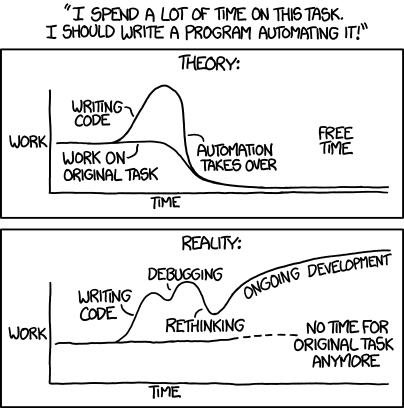
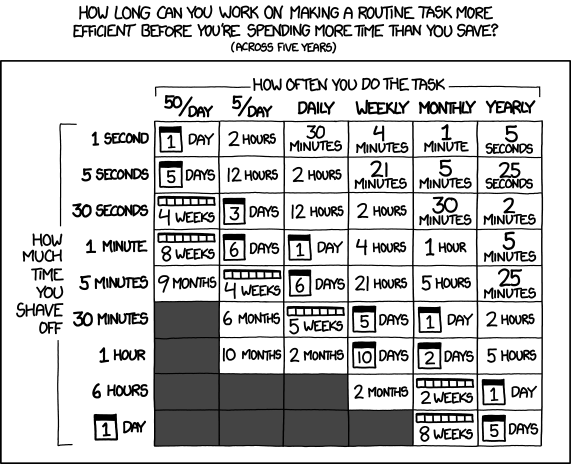
An xkcd comic strip titled 'Automation' exploring the discrepancy between theoretical expectation and reality. In the 'THEORY' panel, a graph shows a brief spike for 'WRITING CODE' before a sharp decline as 'AUTOMATION TAKES OVER,' leaving vast 'FREE TIME.' In the 'REALITY' panel, the 'WRITING CODE' spike leads into a fluctuating line of 'DEBUGGING' and 'RETHINKING' that eventually climbs steadily upward as 'ONGOING DEVELOPMENT,' leaving 'NO TIME FOR ORIGINAL TASK ANYMORE' as the workload permanently increases beyond the original baseline.An xkcd comic titled 'Is It Worth the Time?' featuring a grid that calculates the time-saving break-even point over five years. The horizontal axis lists task frequency (50/day to yearly) and the vertical axis lists time saved per task (1 second to 1 day). Each cell shows the maximum time you should spend automating; for instance, saving 30 seconds on a daily task justifies 12 hours of work, while saving 1 second on a yearly task justifies only 5 seconds. The table uses various units like minutes, hours, days, weeks, and months to illustrate the limits of efficient automation.

Sorry, I just had to include those two legendary xkcds in here.


So I created a little bash script which simplifies adding Co-authors to your commits. All you need is gh and jq installed, and the little bash script below.

Terminal window
brew install gh jq

Save this bash script as git-ucommit to a folder that is in your $PATH (like ~/bin or /usr/local/bin) and make it executable with chmod +x ~/bin/git-ucommit:

~/bin/git-ucommit
#!/usr/bin/env bash
# Check for dependencies
if ! command -v gh &> /dev/null || ! command -v jq &> /dev/null; then
echo "Error: 'gh' (GitHub CLI) and 'jq' are required."
exit 1
fi
args=()
usernames=()
message=""
# Parse arguments
while [[ $# -gt 0 ]]; do
case "$1" in
-u|--user)
usernames+=("$2")
shift 2
;;
-m|--message)
message="$2"
shift 2
;;
*)
args+=("$1")
shift
;;
esac
done
trailer_args=()
# Resolve GitHub usernames to Co-authored-by trailers
for user in "${usernames[@]}"; do
user_json=$(gh api users/"$user" 2>/dev/null)
if [[ $? -ne 0 ]]; then
echo "Warning: Could not find GitHub user '$user'. Skipping."
continue
fi
name=$(echo "$user_json" | jq -r '.name // .login')
id=$(echo "$user_json" | jq -r '.id')
email="$id+$user@users.noreply.github.com"
trailer_args+=(--trailer "Co-authored-by: $name <$email>")
done
# Execute the commit
if [[ -n "$message" ]]; then
final_msg=$(echo -e "$message" | git interpret-trailers "${trailer_args[@]}")
git commit "${args[@]}" -m "$final_msg"
else
# No -m flag? Inject trailers and open the editor
git commit "${args[@]}" "${trailer_args[@]}" -e
fi

Since the file name starts with git-, you do not even need to create a git alias, as it is smart enough to detect your executable and just allows you run:

Terminal window
git ucommit -m "fix: suggestions" -u trueberryless -u delucis

I myself integrated this functionality into my nix-darwinnix-darwin setup. Check out my Nix module if you can profit from this setup.

Summary

🔄 Automatic Rebase on Pull

git config --global pull.rebase true

Sets your global configuration to perform a rebase instead of a merge when pulling. This keeps your git history linear and avoids unnecessary merge commits.

🌱 Modern Default Branch

git config --global init.defaultBranch main

Ensures every new local repository you initialize starts with main instead of master, aligning your local environment with GitHub’s defaults.

👥 Simplified Co-Authoring

git ucommit -m "message" -u <username>

Uses a custom bash script alongside gh and jq to automatically resolve GitHub usernames to the correct “Co-authored-by” trailers, saving you from manual email lookups.

Resources

Here are some helpful resources for optimizing your Git and GitHub workflow:

That’s it! With these tweaks, your local environment stays modern, your history stays clean, and giving credit to your collaborators becomes a breeze. Happy coding!


Uncommon Git Commands

A solitary tree stands in a vast green field under a clear blue sky.

I like to use the git CLI. I have tried UIs like GitKraken, Fork or GitHub Desktop. I don’t like them.

The majority of commands can be remembered after a short amount of time because you use them daily. However, there are some commands you only need here and there, which makes them really difficult to memorize. Every time I need them, I haven’t used them for so long that I forget which option it was. Then I have to look them up again, feeling frustrated and uncool for not knowing Git by heart. It’s embarrassing.

So I decided to write this little post, which doesn’t help memorizing them, but I’ll always know where I can look them up quickly 😅

Checkout a remote branch on fork

When contributing to open source, it is common that you want to checkout a branch of the upstream branch, that doesn’t exist in your remote fork yet. Neither does it exist in your local repository. Now when it comes to checking out a remote branch on a local repository, git switch is your friend. Just remember to fetch the upstream, so git knows the reference you want to track. However, what if the branch is not in your remote repository - your fork.

I usually have set up the original remote repository as the upstream repo locally, which can be done with:

Terminal window
git remote add upstream https://github.com/<org>/<repo>

With this information, git can then fetch the upstream:

Terminal window
git fetch upstream

And now comes the magic: Create and checkout a branch, that until then only exists in the original remote repo with:

Terminal window
git checkout -b <branch> upstream/<branch>

I know that it is pretty annoying that you have to specify the branch name two times, but in theory you could name the local branch differently.

Also don’t forget that this branch does not yet exist in your remote fork, but you can push it easily with:

Terminal window
git push -u origin <branch>

Rename the commit message of an older commit

If you want to rename the last commit, just use:

Terminal window
git commit --amend

When you already have multiple local commits, you have to start an interactive rebase with:

Terminal window
git rebase -i HEAD~3

Here, 3 is the number of commits you want to adapt. If your commit is back 10 commits, you need to put a 10 there instead.

Git will open your favourite editor with some text like:

pick 64e085f Commit Message 1
pick e5f607a Commit Message 2
pick a9b0c1d Commit Message 3

You can now edit this text like a normal file and replace all the pick keywords where you want to change the commit message with reword. After you save and close the file, git will repeatedly open text files with the old commit message, which you can freely edit to your likings. After you adapted everything you wanted and close the last file, the rebase is finished and you can check your corrections with:

Terminal window
git log --oneline

Interactive rebasing is incredibly useful, as other options like squash, break or even exec are available. Just keep in mind that it makes more sense to do this on a branch where only you work to avoid team friction.

Clean up local branches

When a PR is merged, the branch is usually deleted after it is safely merged into the default branch. But the branch still exists locally. If you want to delete all the local branches, which got deleted in your remote repository, you can run this command in most shells (use wsl on Windows):

Terminal window
git fetch -p && git branch -vv | awk '/: gone] / {print $1}' | grep -v '^\*$' | xargs -I{} git branch -d "{}"

Summary

🛰️ Track Upstream Branch

git fetch upstream && git checkout -b <branch> upstream/<branch>

Fetches the latest references from the original repository and creates a local branch that tracks the upstream version in one logical flow.

🔄 Rename Older Commits

git rebase -i HEAD~n

Use this to rewrite history. In the interactive editor, change pick to reword for any of the last n commits you want to modify.

🧹 Prune Local Branches

git fetch -p && git branch -vv | awk '/: gone] / {print $1}' | grep -v '^\*$' | xargs -I{} git branch -d "{}"

A pipeline that identifies local branches whose remote counterparts have been deleted (“gone”) and attempts to delete them safely.

Resources

Here are some helpful resources for learning git and other situations you often find yourself in:

That’s it for now, more useful uncommon git commands might be added in the future!

How VS Code Snippets can improve your workflow when working with Astro

A collection of old newspaper sheets piled on a wooden table, displaying vintage articles and worn edges.

This article demonstrates how code snippets can be created in Visual Studio Code that can significantly boost your productivity when regularly working with Astro’s content collections.

Some aspects of creating a blog are really easy, and some are extremely difficult!

A wooden table displays a notebook, a pen, and a steaming coffee cup, suggesting a productive writing session.

Talk a little bit about how one can become better (not master by any means, nobody is perfect) in writing a blog post. These are just my thoughts after two awesome guys from the Astro Community (jdtjenkinsJacob and louisescherLou) decided to write blogs about how hard and easy it is to write blog posts.

Please read their posts first as this is the follow-up on both of them:

  1. “Why is writing blog posts so hard?” - Jacob Jenkins
  2. “Why Writing Blogs isn’t hard” - Louis Escher
  3. “Some aspects of creating a blog are really easy, and some are extremely difficult!” - Felix Schneider

After that you have successfully completed this awesome trilogy of blog posts about blog posts.

Setting up Kubernetes with Cilium and Cloudflare

A cube in 3D with a yellow and green sticker applied to its surface, showcasing a geometric design.

This blog posts describes the process of setting up a KubernetesKubernetes cluster with k3sk3s and CiliumCilium. We use HelmHelm as the package manager and CloudflareCloudflare as the certificate issuer. We used the tips and tricks from Vegard S. Hagen from his article. Essentially, this blog explains, how all the trueberryless.org websites are deployed (not any more).